


Support

This support page contains solutions to the most common problems reported via our support page.
1. Refunds and Payment problems! 2. My App does not work on my Phone / Tablet! 3. My App does not run smoothly! 4. I need to restore my in-App purchases! 5. How do I reinstall my apps and restore in-App purchases on a new device? 6. My App crashes after a few seconds the first time I run it!
If for any reason you are experiencing a problem that is not covered here then please contact us via our contact page on this website.
Refunds and Payment Problems!
Play Google App Store customers
If you want a refund or think that you have been charged wrong then please contact us via our contact page on this website. All transactions are handled through Google so please include your Transaction ID and a clear and concise explanation of the problem.
If you are experiencing problems with one of our games then please give us details as we will always try to rectify any problem before issuing refunds.
Amazon App Store customers
If you downloaded your App from the Amazon App Store then please contact Amazon directly, as we have no access to the transactions made. All of our Apps were removed from the Amazon App Store in 2016
My App does not work on my Phone / Tablet!
Due to the variety of Android devices we are not able to test our Apps on every single device.
For example, Play Google has informed us that our Apps are compatible with over 18,000 devices.
However there are differences between hardware that may cause problems such as graphics not displaying properly or other issues.
If you are experiencing problems please contact us via our contact page on this website.
Please ensure you give us precise details on your device and the version of Android that is installed on your device, we will endeavour to update our Apps to accommodate your configuration.
My App does not run smoothly!
This is probably due to having too many Apps running in the background.
When an App is closed by pressing the back button or task switching, it is still using system resources which will have a negative effect on your devices performance.
Please close down as many background Apps and Tasks as possible, if the App still has performance issues after closing down all unwanted Apps then restart your device.
I need to restore my in-App purchases!
Please ensure that you are signed into your device and the relevant app store using the account that you originally purchased the items with. If you are signed in using a different account then this procedure may not work. Purchases are associated with specific accounts, for more details please contact your App store provider which will either be Google or Amazon.
Note: My Bowling 3D is shown here, but the procedure is the same for all supported iWare Designs games.
The design and layout of Android also differs between devices and versions of Android. These steps are only a guide.
Step 1: Locate and open your 'Settings' App.
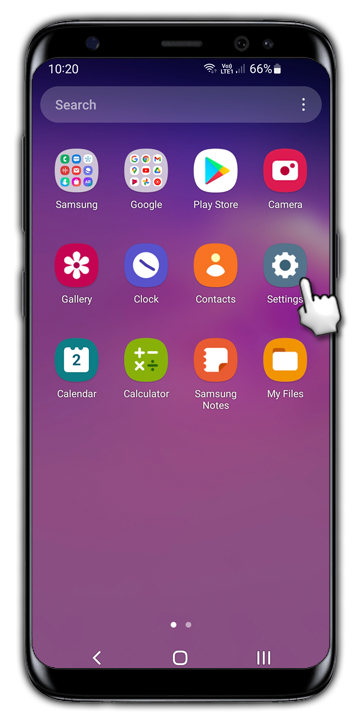
Step 2: Scroll down and tap on 'Apps'.
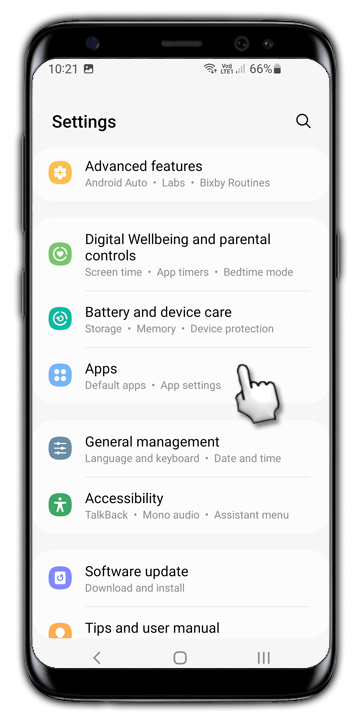
Step 3: Locate and tap on the game you would like to restore purchases in.
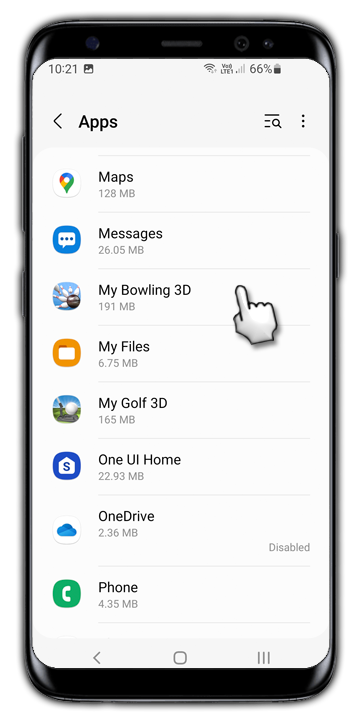
Step 4: Tap on 'Force Stop' and tap 'OK' to confirm the operation.
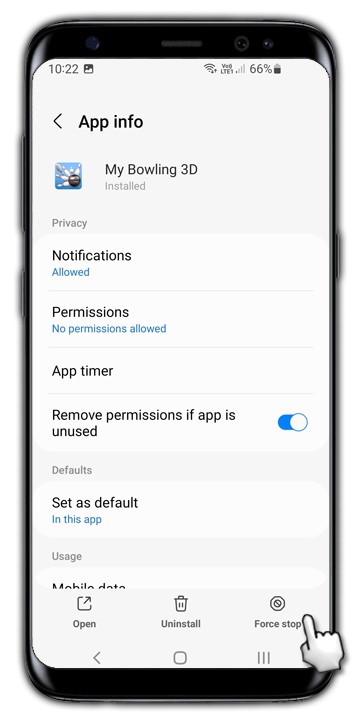
Step 5: Tap on the 'Home' button to return to the Home Screen.
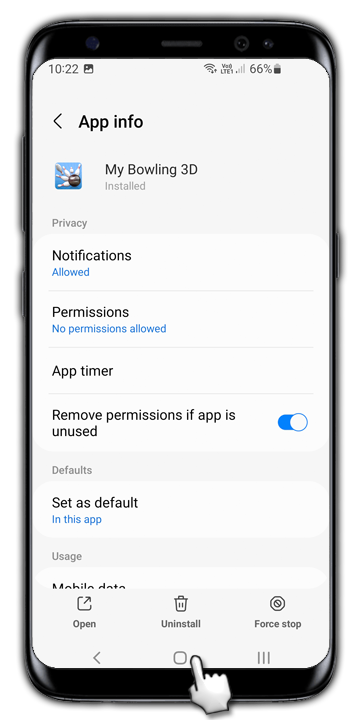
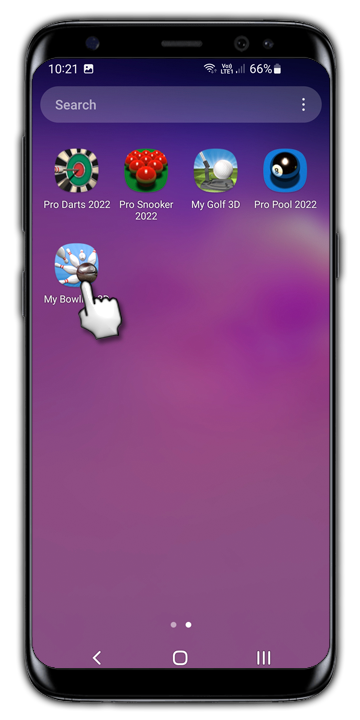
Step 6: Tap on the icon of the game you would like to restore purchases in.
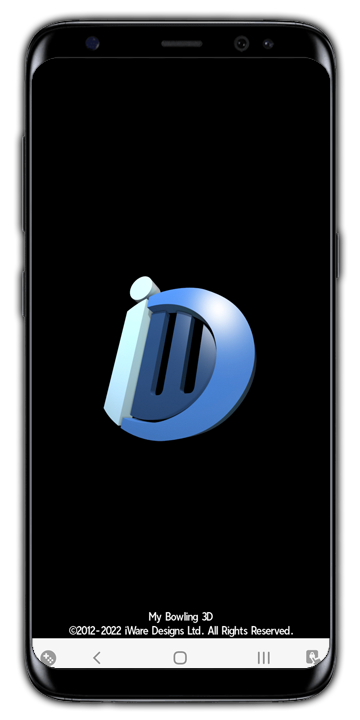
Step 7: You should see the iWare Designs logo which means the game has restarted correctly.
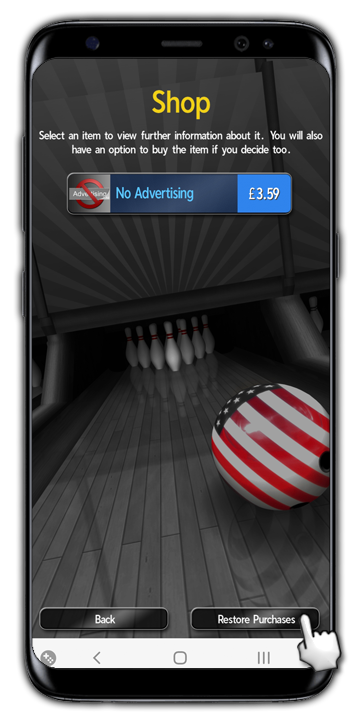
Step 8: Tap on the 'Shop' button.
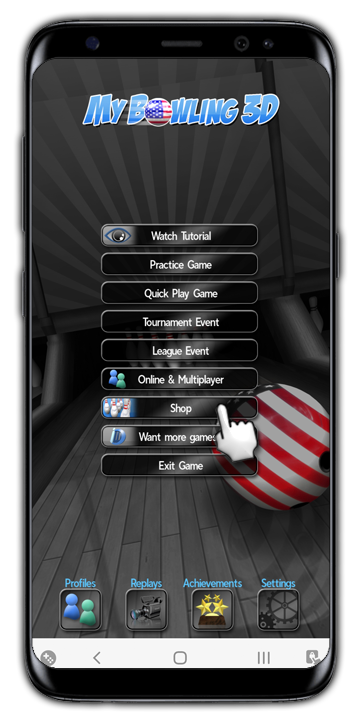
Step 9: Tap on the 'Restore Purchases' button.
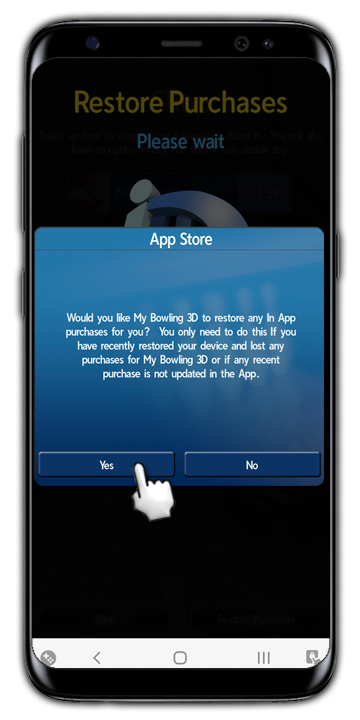
Step 10: Agree to the requester prompt and then follow any other instructions from your App store provider.
If you are experiencing problems with one of our games then please give us details as we will always try to rectify any problem before issuing refunds.
How do I reinstall my apps and restore in-App purchases on a new device?
This process DOES NOT restore player profile data or game progress.
Please click this link to the Google Play Support pages and follow the instructions.
My App crashes after a few seconds the first time I run it!
This is a known issue with Google Play Services that affects Android 17+ devices.
The solution is to clear the cache of the Google Play Services app. Please follow these steps for Android 17+ devices:
Step 1: On your device, open the Settings app
Step 2: Tap Apps > See all apps
Step 3: Scroll down until you find Google Play Services and tap on it.
Step 4: Tap on Storage and cache
Step 5: Tap on Clear cache
Step 6: Restart your device
This issue may affect other versions of Android. The solution will be broadly similar on other versions, but menus might be labelled slightly differently or be under different sub-menus.
Please follow the steps on Google's support page for further Google Play fixes https://support.google.com/googleplay/answer/ 9037938?hl=en-GB