

Support

The Apple Arcade versions of our games use Apple iCloud to save the progress of your games. This means you can continue your matches across any of your supported Apple devices if you are signed in to your Apple account and have iCloud enabled.
1. How do I set up iCloud? 2. How do I enable iCloud? 3. How do I disable iCloud? 4. How do I manually synchronise with iCloud? 5. What is a data conflict?
If for any reason you are experiencing a problem that is not covered here then please contact us via our contact page on this website.
How do I set up iCloud?
Please refer to this guide from Apple on how to set up and configure iCloud.
How do I enable iCloud?
You can enable iCloud two ways.
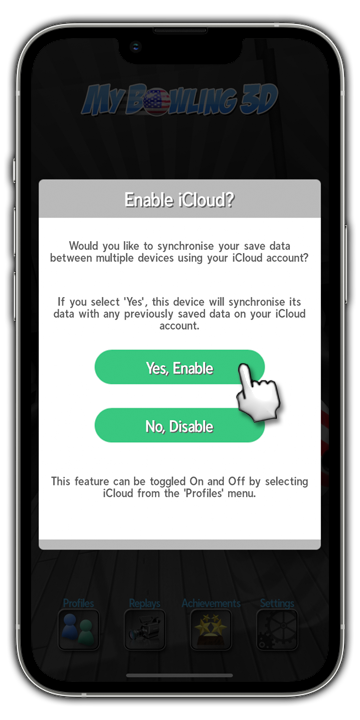
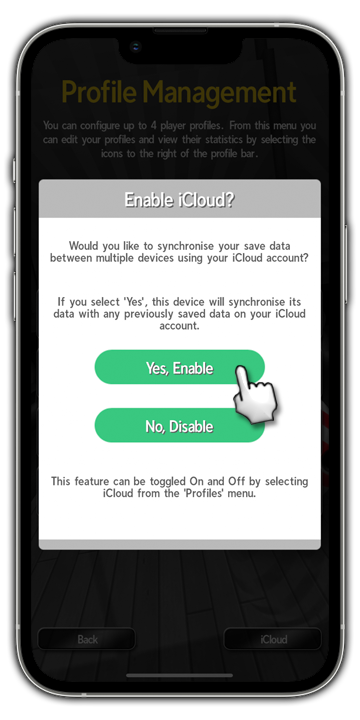
You will be asked if you would like to enable iCloud when you first launch the game:
Step 1: Simply tap 'Yes, Enable' from the popup.
Or you can enable iCloud later from the 'Profiles' menu:
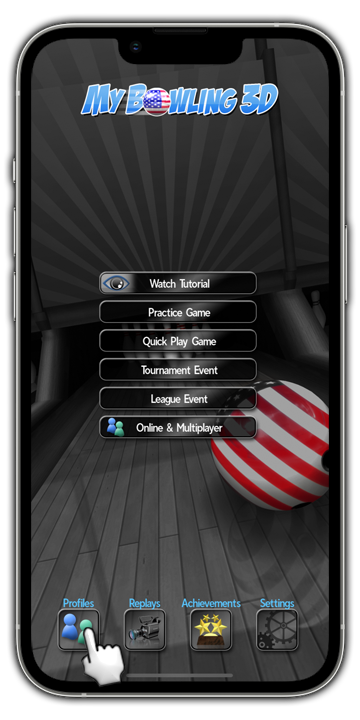
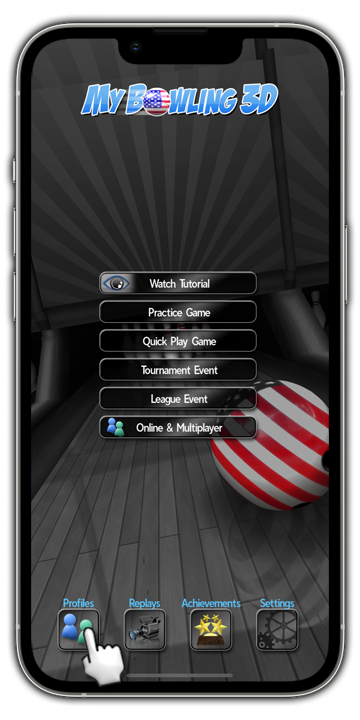
Step 1: Tap on 'Profiles' from the main menu.
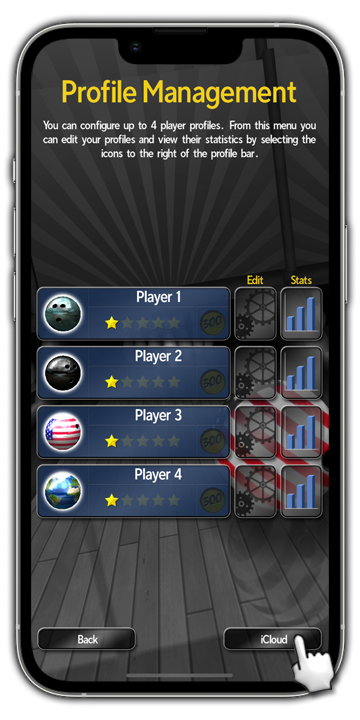
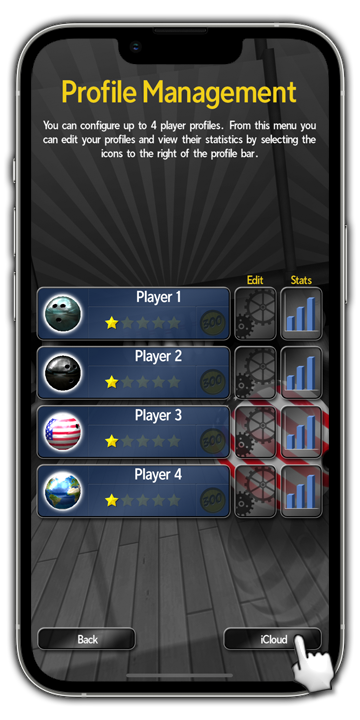
Step 2: Tap on the 'iCloud' button.
Step 3: Tap on 'Yes, Enable' from the popup.
How do I disable iCloud?
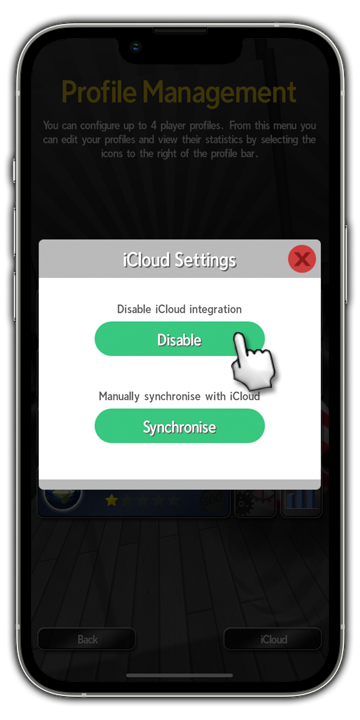
Disabling iCloud means save game data will no longer be sent or recieved by this device.
Step 1: From the main menu, tap on 'Profiles'.
Step 2: Tap on the 'iCloud' button.
Step 3: Tap 'Disable' from the popup.
How do I manually synchronise with iCloud?
iCloud synchronisation is automatically performed when a match is completed and you return to the menus.
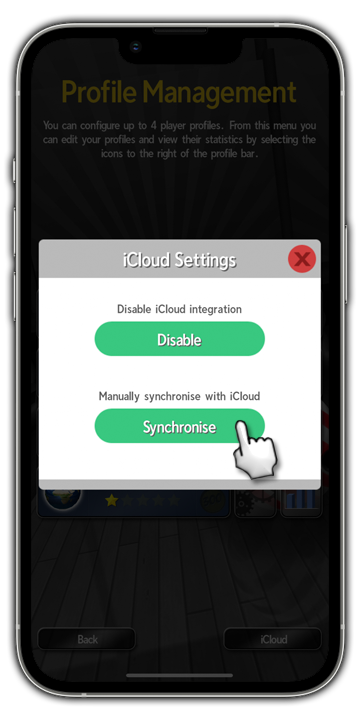
Should you wish to manually perform synchronisation, please follow these steps:
Step 1: From the main menu, tap on 'Profiles'.
Step 2: Tap on the 'iCloud' button.
Step 3: Tap on 'Synchronise' from the popup.
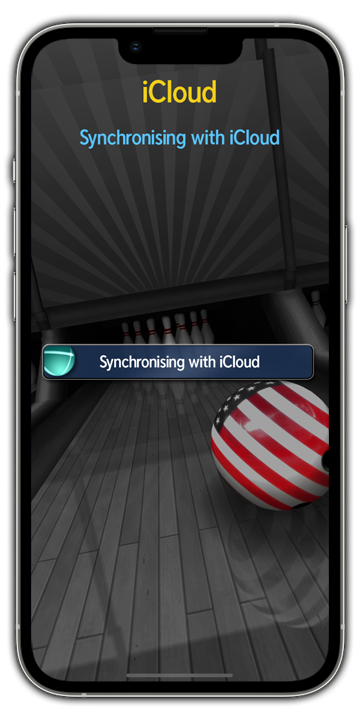
Step 4: You will then see the synchronisation screen.
What is a data conflict?
A data conflict happens when the iCloud data for a game is out of sync with the data saved on your device.
This typically occurs if you have played matches with iCloud disabled then re-enable it, or if you are playing concurrently with two or more devices signed in to the same iCloud account.
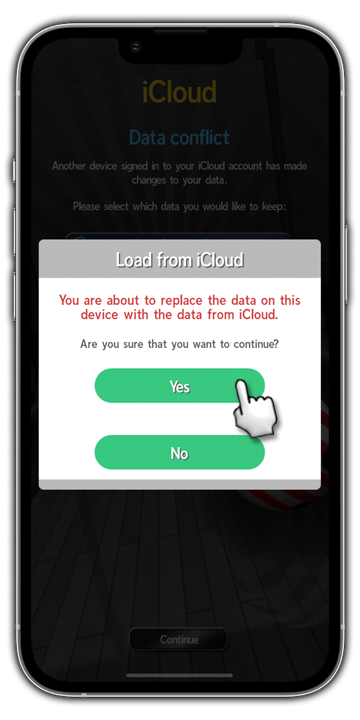
When a data conflict occurs, you will be asked to choose which data you want to keep. Either the device or the iCloud data.
Simply tap on an option to select it, then tap 'Continue'.
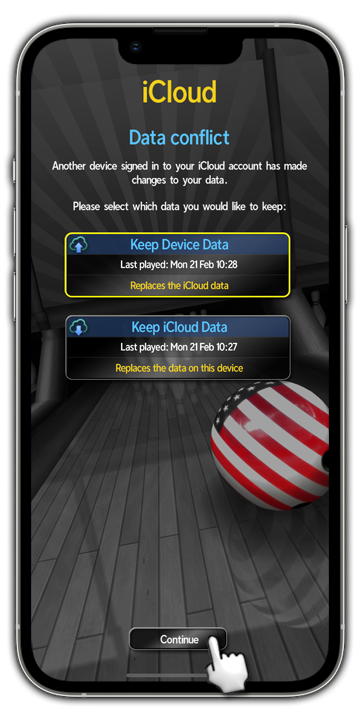
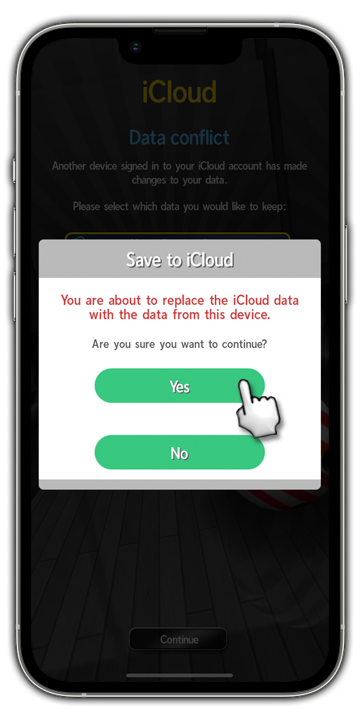
If you choose to keep the device data, your iCloud game data will be replaced.
If you choose to keep the iCloud data, your device game data will be replcaed.